Setup Guide
Set up Huudy in under 2 minutes
1
Download & install Huudy
Download the installer from GitHub and run it. Windows may show an "unrecognized app" warning — click More info → Run anyway. This is normal for newly released apps.
2
Select a capture source
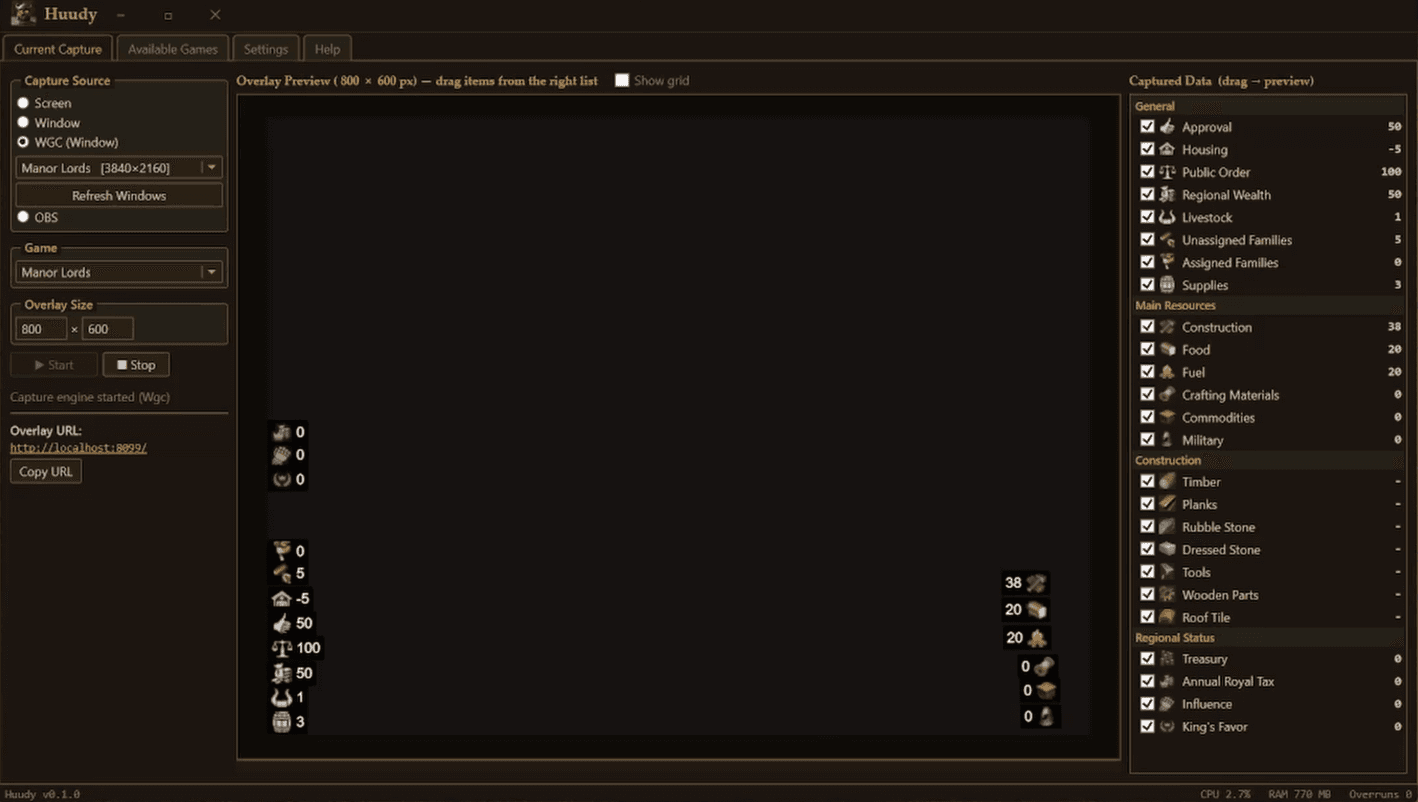
In the Current Capture tab, choose Screen, Window, or OBS WebSocket. Point it at your game.
3
Pick your game
Select your game from the dropdown. The HTTP server starts automatically on the configured port.
4
Add the overlay in OBS or Meld Studio
Add a Browser Source (OBS) or Browser Layer (Meld Studio). Set the URL to http://localhost:<port>/ — find the exact URL in the Game Capture tab under Overlay URL. Set width/height to match your canvas.
5
Activate your license
Purchase a plugin at huudy.app/pricing, log in to your dashboard, copy the license key, and paste it in Settings → License → Activate.